I used Git for two years. Every single day. But I never really knew what it was doing.
I knew git commit. I knew git push. I knew that sick feeling when git merge broke everything. But if someone asked me what Git was actually storing — I had no real answer.
Then one day a senior engineer said something simple. “Git doesn’t track changes. It takes photos.” One sentence. Suddenly git checkout, git rebase, git stash — all of it made sense.
This post explains that one idea. Properly.
Git doesn’t save changes. It takes a photo.
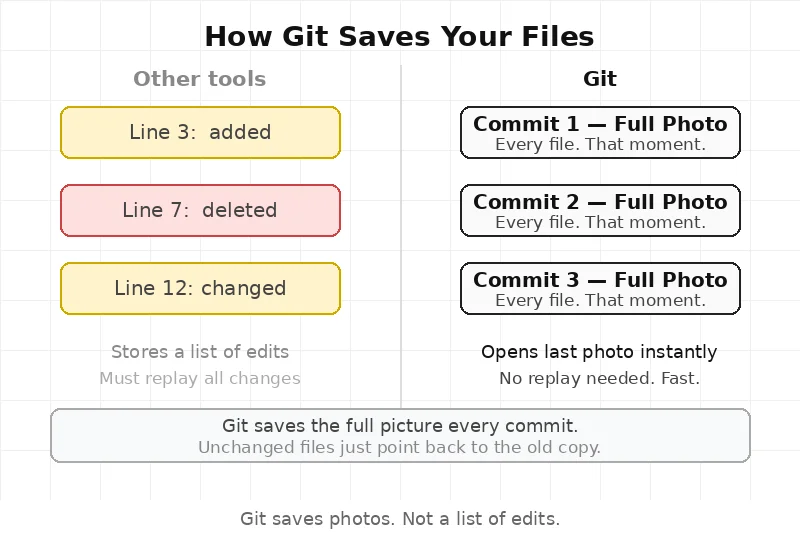
Most people think Git works like a Word document. You make a change. Git saves that change. Line added here. Line deleted there.
That’s not how it works.
Every time git commit runs, Git takes a full photo of every file. Not just what changed — everything. Every file. At that moment.
Think of it like a camera. A camera doesn’t save “what moved.” It saves the whole picture.
If a file didn’t change, Git is smart. It doesn’t save it again. It just points back to the old copy. But the idea is a full photo — not a list of edits.
This is why Git is fast. It doesn’t replay hundreds of old changes to know what the project looks like now. It just opens the last photo.
What Git saves when you commit
When git commit runs, Git creates three things.
A blob. This is the content of a file. Just the text inside. No name. No folder. Just the content.
A tree. This is the folder structure. It says which blobs go in which folders. It gives each blob its name.
A commit object. This points to the tree. It saves the author, the date, and the message. And it points back to the last commit.
💡 That last part is the key. Every commit points to the one before it. Follow those pointers back and you reach the very first commit. That chain is the full history.
How Git names everything
Every blob, tree, and commit gets a name. That name looks like this:
a3f9b2c1d4e5f6a7b8c9d0e1f2a3b4c5d6e7f8a9
This is called a SHA hash. Git makes it by running the content through a math formula. Same content always gives the same hash. Different content always gives a different hash.
This is very useful. Git checks if two files are the same just by comparing their hash. No need to read the whole file.
It also keeps history safe. Change one line in an old file and its hash changes. That changes the commit hash. That changes every commit after it too. Git knows straight away that something is wrong.
Those long strings in git log? Not just labels. Those are the real names of your commits.
What a branch actually is
Most people think a branch is a copy of the project. A separate folder. A separate version.
It’s not. A branch is just a small text file.
That file holds one thing — a commit hash. That’s it.
When git checkout -b feature runs, Git creates a file called feature inside .git/refs/heads/. That file has the hash of the current commit. Nothing else.
When a new commit is made, Git updates that file with the new hash. The branch moves forward.
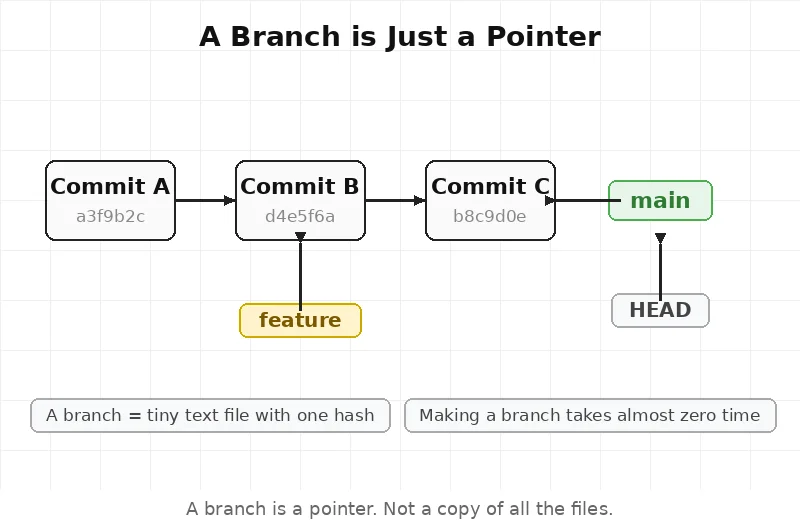
This is why making a new branch takes no time at all. Git isn’t copying files. It’s making a tiny text file with 40 characters in it.
Older tools like SVN copied the whole project when you made a branch. That’s why it was slow. Git doesn’t do that.
What HEAD is
Inside .git there is always a file called HEAD. It usually says:
ref: refs/heads/main
That’s it. HEAD says which branch is active right now.
When git checkout main runs, Git updates HEAD to say main. When a commit is made, the branch moves. HEAD follows it.
💡 Sometimes a warning says “detached HEAD.” This just means HEAD is pointing at a commit directly — not at a branch. Nothing is broken. But if a new commit is made there, no branch will track it. It can get lost. Just create a branch at that point and it’s fine.
How git merge works
When two branches get merged, Git looks at three things:
- The last commit on the current branch
- The last commit on the other branch
- The last commit where both branches were the same
Git checks what changed on each side after that shared point. If different files were changed, Git combines them. If the same lines were changed on both sides, Git stops and asks what to do. That’s a merge conflict.
From experience: Most merge conflicts are not about big features. They come from two people changing the same small file — like a config file or the top few lines of a shared file. Keep those files stable and conflicts go down a lot.
The staging area
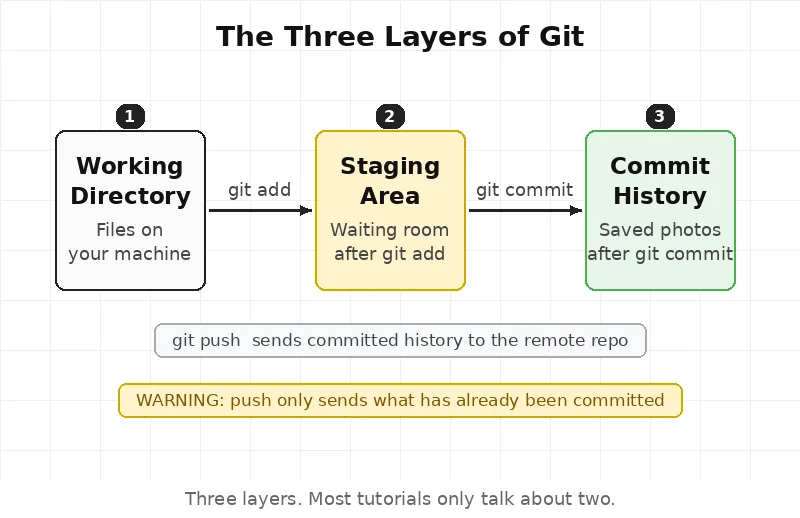
There are three places files live in Git.
The working directory — the actual files on your computer right now.
The staging area — a waiting room. Files go here after git add. Not saved yet. Just waiting.
The commit history — the real saved photos. Only after git commit.
When git add runs, the file doesn’t go into history. It goes to the waiting room first. Like putting things in a bag before sealing it.
Say 5 files were changed but only 3 should go in this commit. Add just those 3. The other 2 stay in the working directory. Git won’t touch them.
Most people run git add . every time and add everything. That works. But the staging area is there when more control is needed.
The Git lifecycle — add, commit, push
This is the flow every engineer uses every day. Three steps. Always in this order.
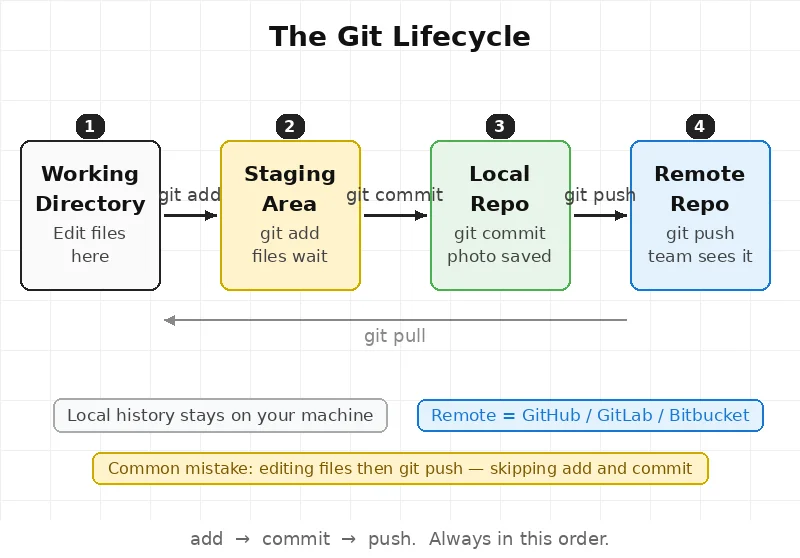
Step 1 — Make a change. Edit a file on the local machine. Git sees the change. But it doesn’t do anything yet. The file is in the working directory.
Step 2 — git add This moves the file to the staging area. Think of it like putting items in a box before sealing it. The file is ready. But nothing is saved yet.
git add index.htmlOr add everything at once:
git add .Step 3 — git commit This seals the box. Git takes a photo of everything in the staging area. It saves the photo to the local history. The change is now safe — but only on the local machine.
git commit -m "fix login button color"Step 4 — git push This sends the local commits to the remote repo — like GitHub or GitLab. Now the team can see the changes. Now it’s backed up.
git push origin main💡 A common mistake — editing files, running git push, and wondering why nothing changed. Push only sends what has been committed. If git add and git commit didn’t run first, there is nothing to push.
20 Git commands every engineer should know
| Command | What it does |
|---|---|
git init | Start a new Git repo in the current folder |
git clone <url> | Copy a remote repo to the local machine |
git status | Show which files are changed, staged, or untracked |
git add <file> | Move a file to the staging area |
git add . | Move all changed files to the staging area |
git commit -m "message" | Save staged files as a new commit |
git push origin <branch> | Send local commits to the remote repo |
git pull | Fetch and merge changes from the remote repo |
git fetch | Fetch changes from remote — but don’t merge yet |
git branch | List all local branches |
git branch <name> | Create a new branch |
git checkout <branch> | Switch to a different branch |
git checkout -b <name> | Create a new branch and switch to it |
git merge <branch> | Merge another branch into the current one |
git rebase <branch> | Move current commits on top of another branch |
git log | Show the commit history |
git diff | Show what changed but hasn’t been staged yet |
git stash | Save current changes and clean the working directory |
git stash pop | Bring back the last stashed changes |
git reflog | Show every place HEAD has been — useful for recovery |
Where Git stores everything
All blobs, trees, and commits live in one folder: .git/objects.
Everything is saved there, named by its hash. Open that folder and the full history of the project is sitting inside. No magic. Just files.
Deleting .git deletes all history. The project files stay. But all the commits, branches, and messages are gone. The .git folder is the project’s memory.
Why this changes how the commands feel
Once the model is clear, the commands stop feeling random.
git checkout — move HEAD to a different branch or commit. The files update to match that photo.
git rebase — take commits from one branch and put them on top of another. Not moving files. Moving commit objects.
git stash — save the current changes as a temp object. Clean the working directory. Come back to it later.
git reflog — a log of every place HEAD has ever been. Even after a reset, the old commit is still in .git/objects for a while. The reflog can find it.
Git doesn’t delete things right away. It just stops pointing at them. Old commits sit there until Git cleans them up. That’s the safety net.Git is a core skill in the DevOps engineer roadmap — understanding how it stores data makes every other tool easier to learn.
5 Git Interview Questions
1. What is the difference between git merge and git rebase?
2. What happens when git add runs?
3. What is a detached HEAD state?
4. How does Git know if two files are the same?
5. Can a deleted branch be recovered in Git?
Frequently Asked Questions
What does Git save when a commit is made? Git saves three things — a blob (the file content), a tree (the folder structure), and a commit object (which points to the tree and links to the last commit). All three go into .git/objects.
What is the difference between Git and GitHub? Git is a tool that runs on a local machine and saves project history. GitHub is a website that hosts Git projects online so teams can share them. Git was built by Linus Torvalds in 2005. GitHub is a company now owned by Microsoft.
Why does Git use long hashes instead of simple version numbers? Git has no central server. Any engineer can make commits offline. Version numbers need a server to hand them out in order. Hashes come from the content itself — so two engineers anywhere in the world will never make the same hash for different content.
What happens when a branch is deleted? The commits don’t disappear right away. The branch file in .git/refs/heads/ is deleted. But the commit objects stay in .git/objects for a while. The git reflog command can still find them. Engineers who work with CI/CD pipelines often rely on this recovery method when a branch is deleted too early.
This article is for educational purposes based on publicly available engineering resources.